
SoluWise is the authorized partner & distributor of Zebra Barcode Printer in Dubai, Abu Dhabi & UAE. Whether you need a Direct Thermal Barcode Printer to print shipping labels for your logistics or Thermal Transfer Barcode Printers to make excellent inventory labels and asset labels.
SoluWise supplies Zebra barcode printers in Dubai, Abu Dhabi and across the UAE for businesses in logistics, warehousing, retail, manufacturing and healthcare. Choose from desktop, industrial and ID card printers for shipping labels, inventory tracking, product identification and asset labelling.
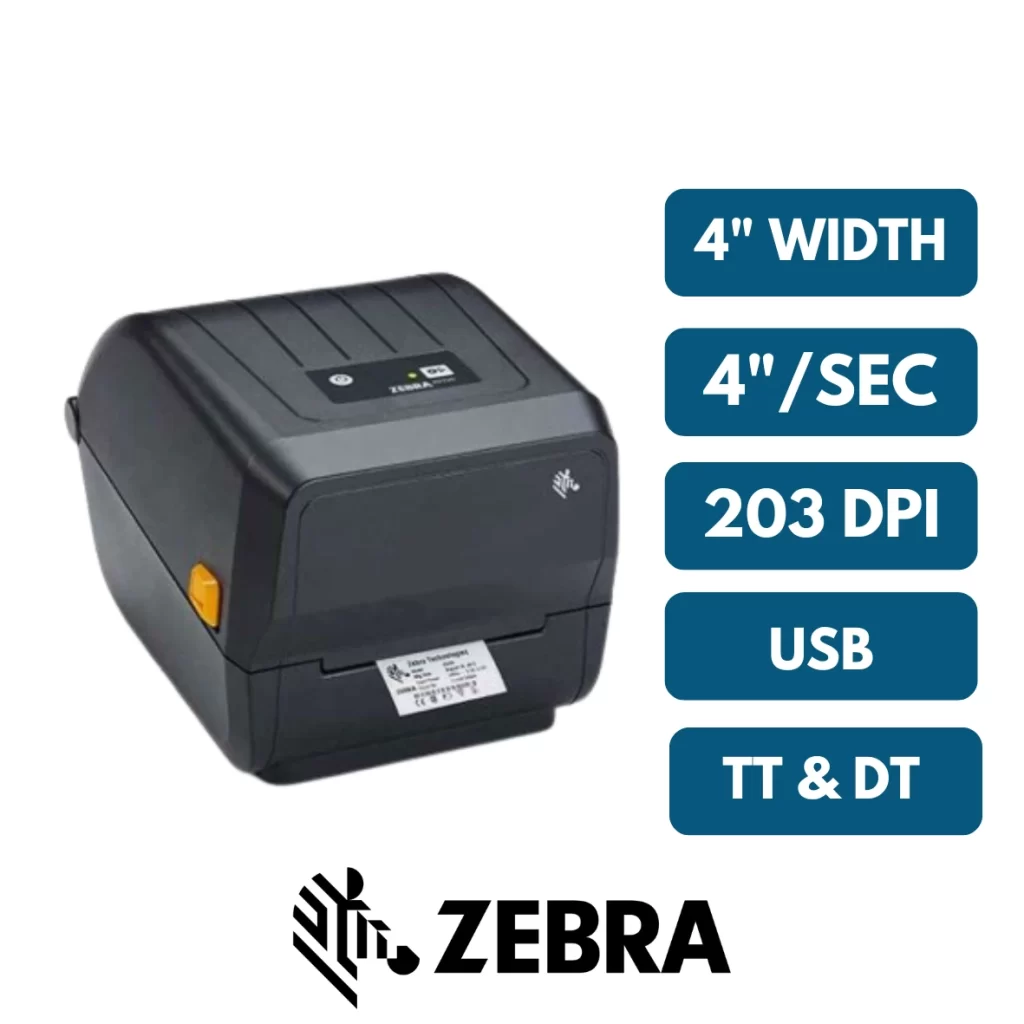
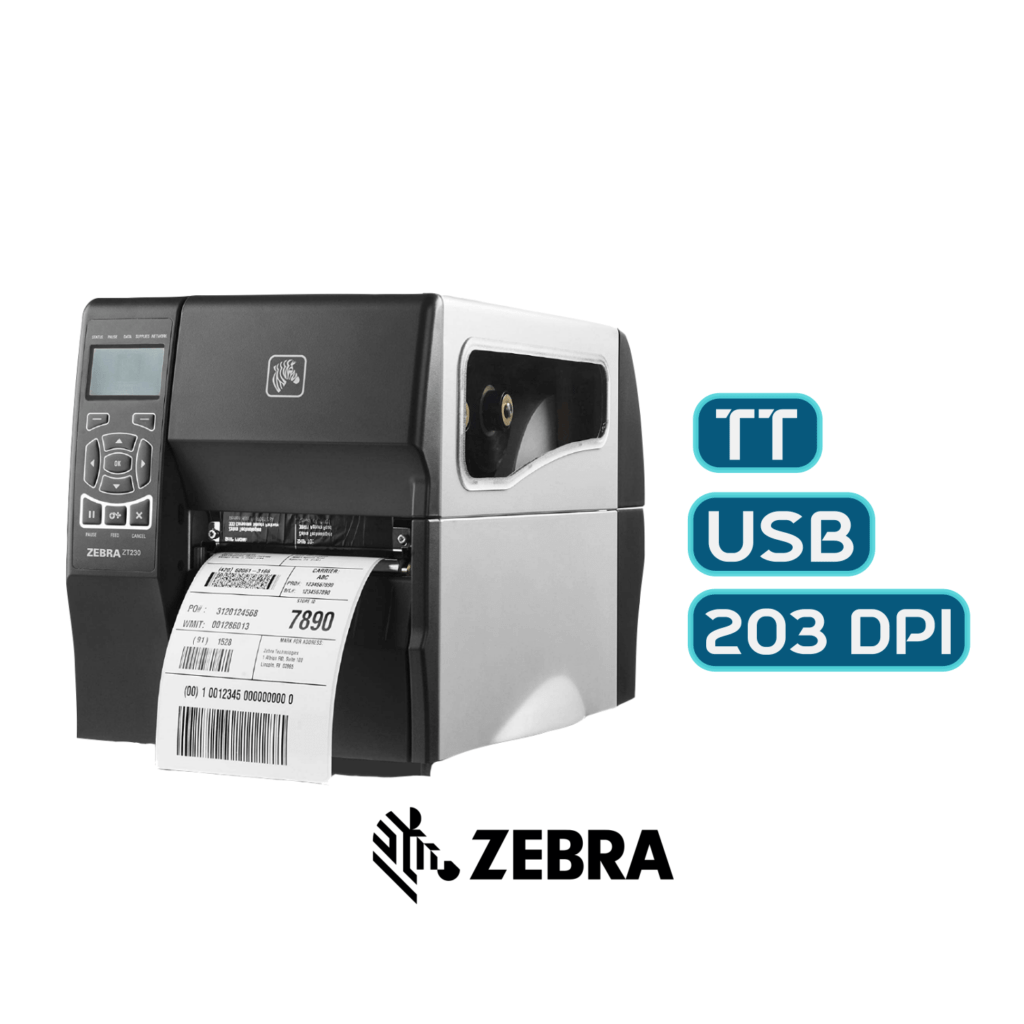
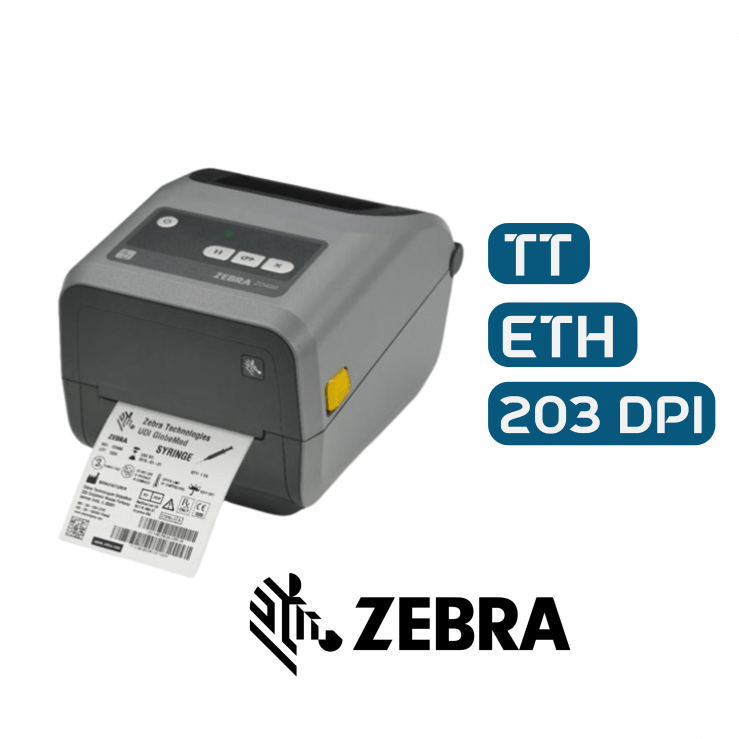
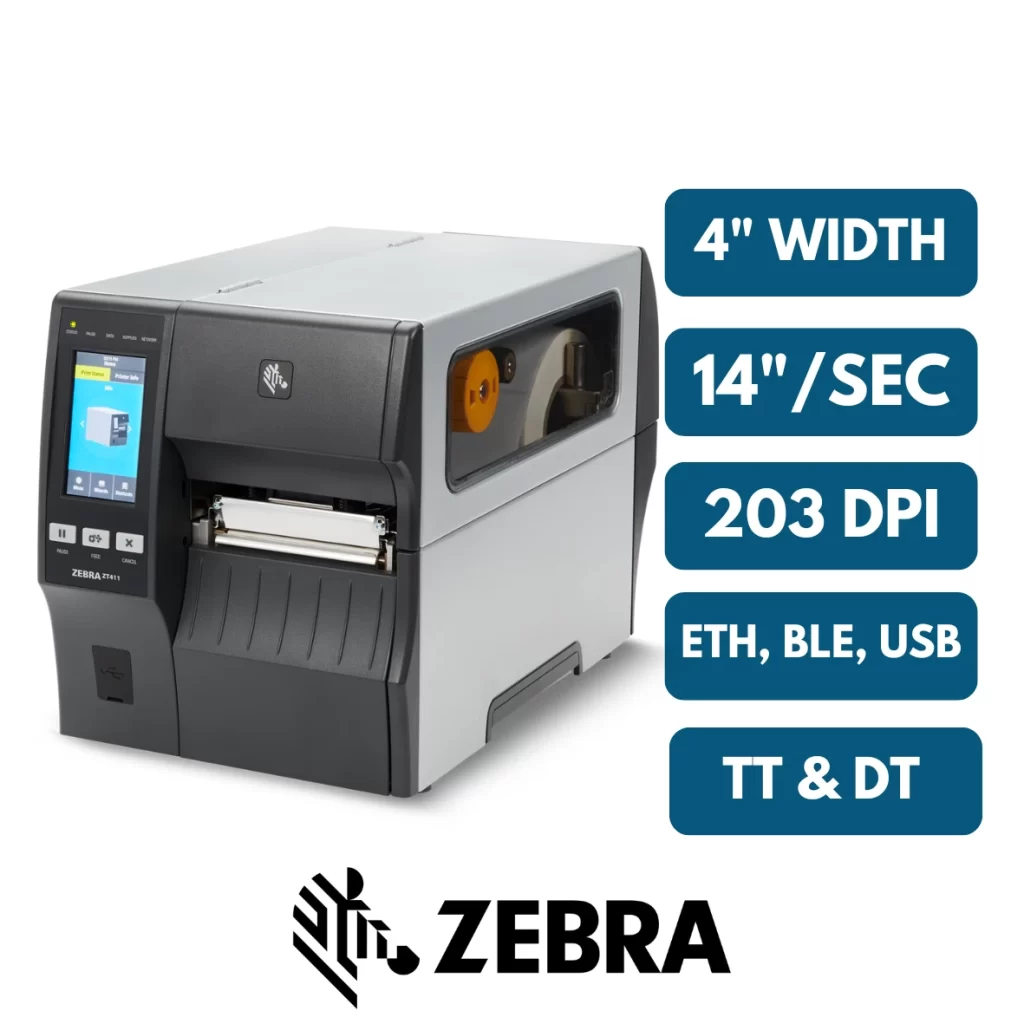
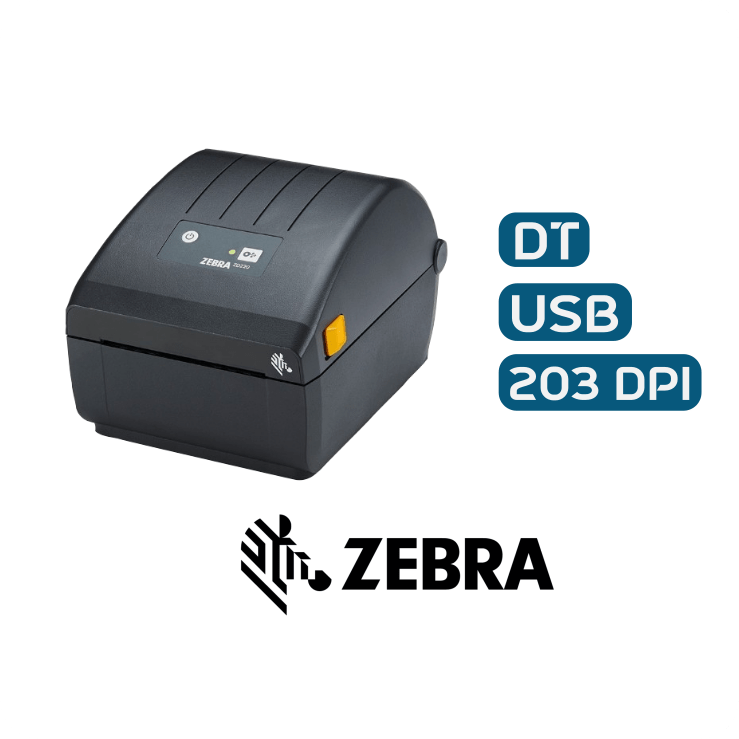
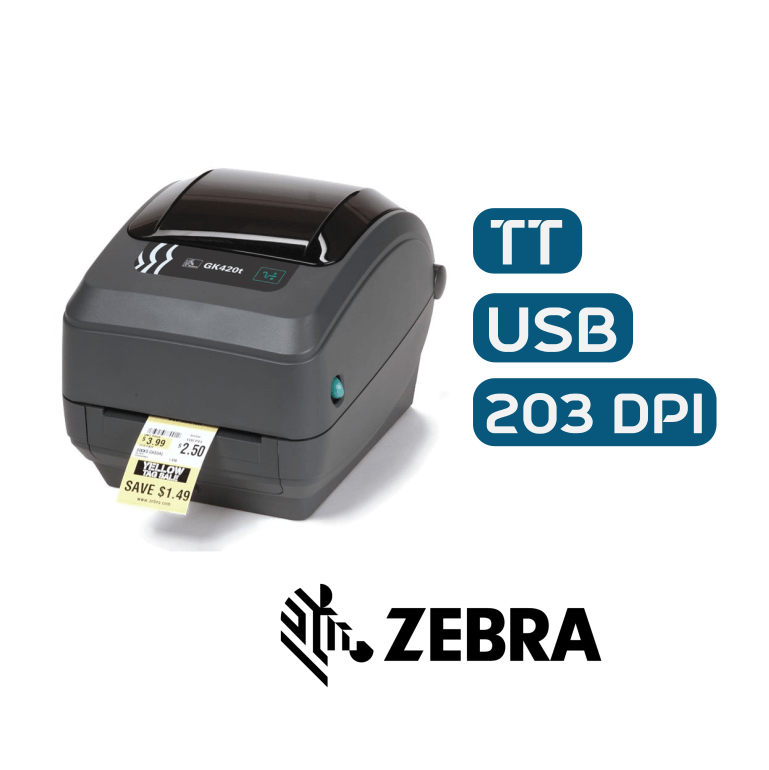
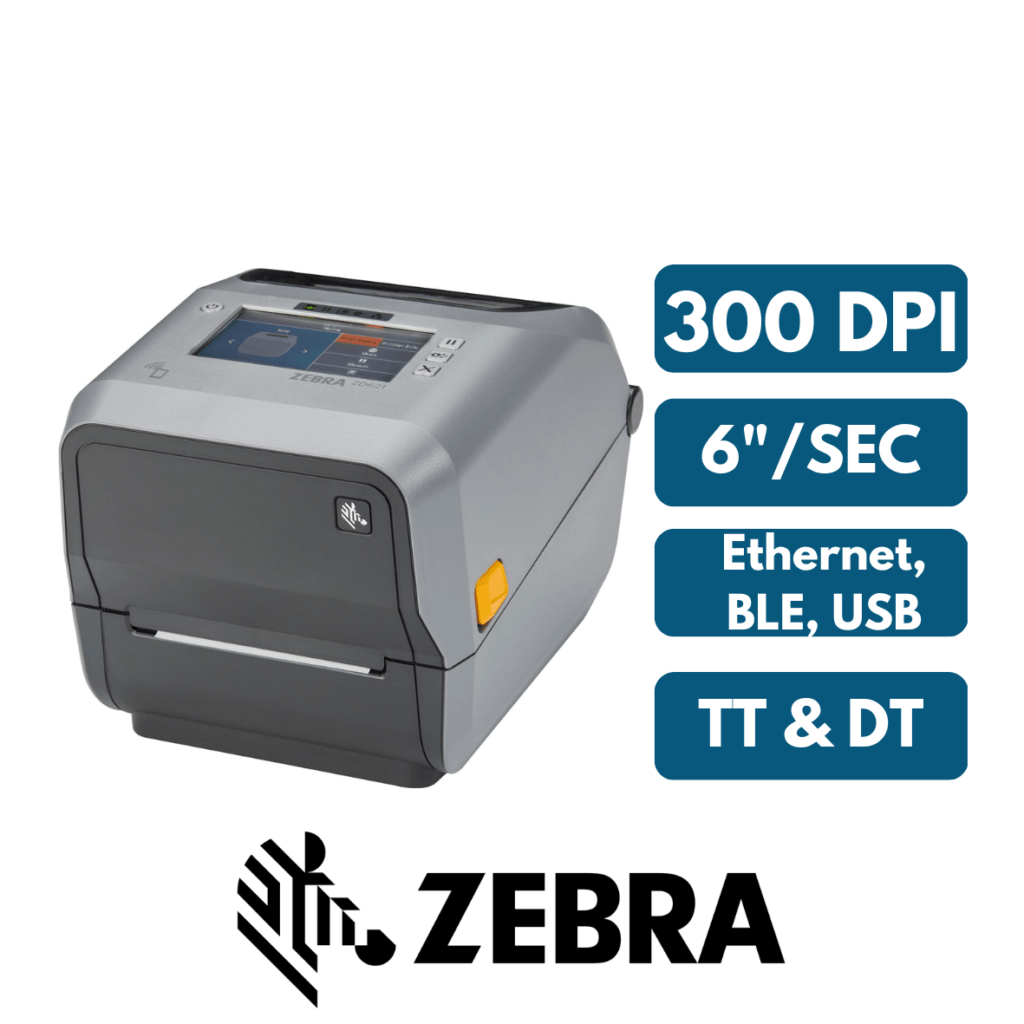
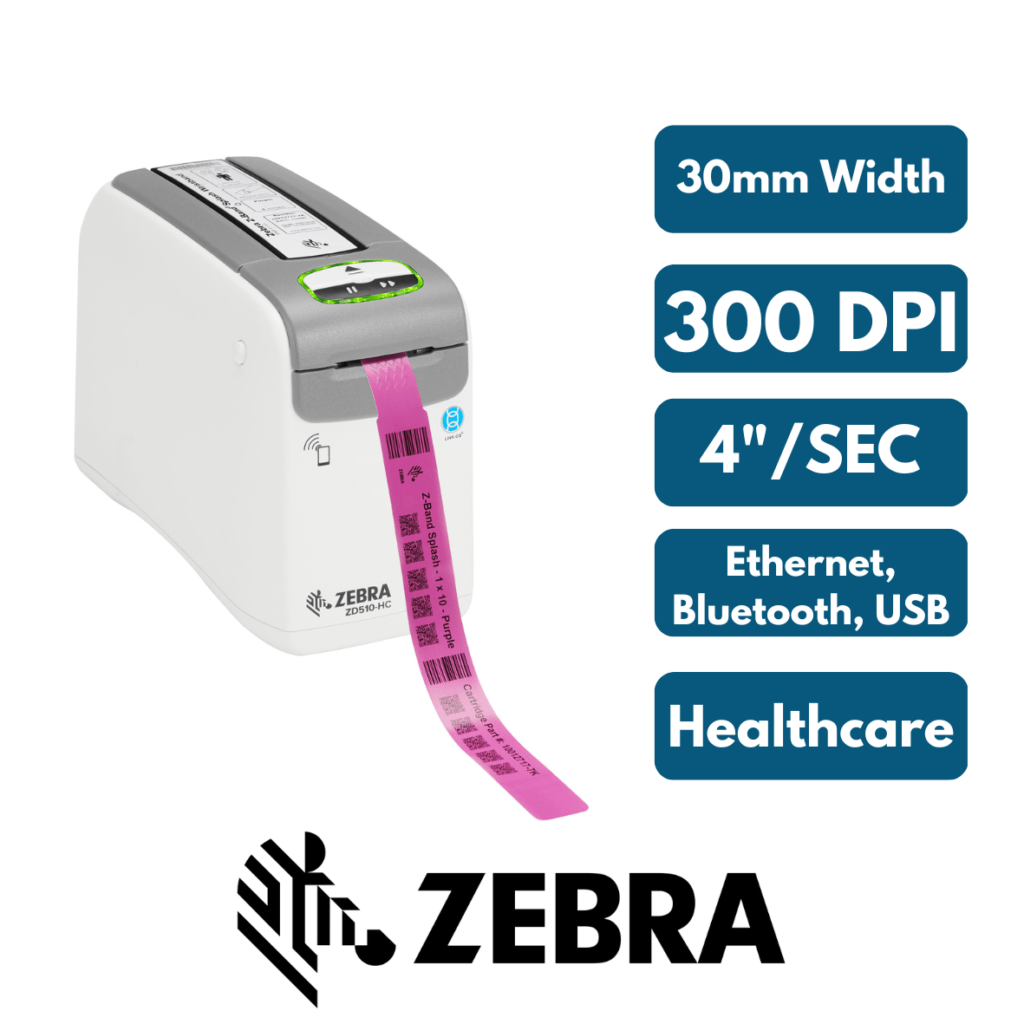
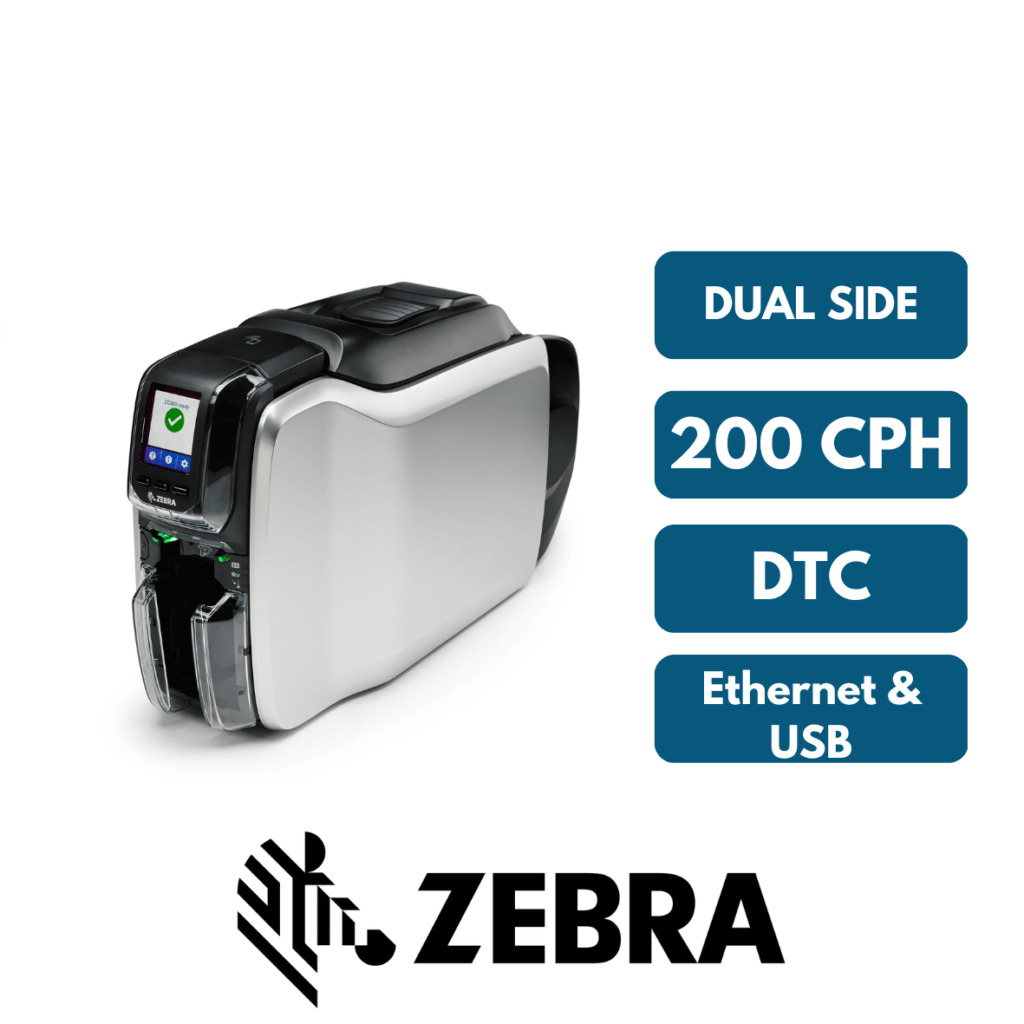
Explore popular Zebra models, including the ZD220, ZD421, ZD621, ZT411, ZT231 and ZC300, or contact our team for help selecting a printer based on your label size, daily print volume, resolution and connectivity requirements.
We also supply compatible barcode labels and ribbons, with expert product guidance and after-sales support to help you get the right printing solution.

How to Choose the Right Zebra Barcode Printer
Choosing the right Zebra barcode printer depends on your daily label volume, print resolution, label material, connectivity and software requirements. A desktop printer may be suitable for everyday office or retail printing, while an industrial model may be better for demanding production and warehouse operations.
Use this practical guide to compare your requirements before selecting a Zebra printer for your business in Dubai, Abu Dhabi or elsewhere in the UAE.
1. How Many Labels Do You Print Per Day?
Start with your typical and peak daily printing requirements. Print volume is important, but also consider your working environment, required speed, roll capacity and how frequently the printer will be used.
Desktop Barcode Printers
Compact printers are often suitable for offices, retail counters, small warehouses and businesses printing labels in batches throughout the day.
Models to explore: Zebra ZD220, ZD421 and ZD621.
Industrial Barcode Printers
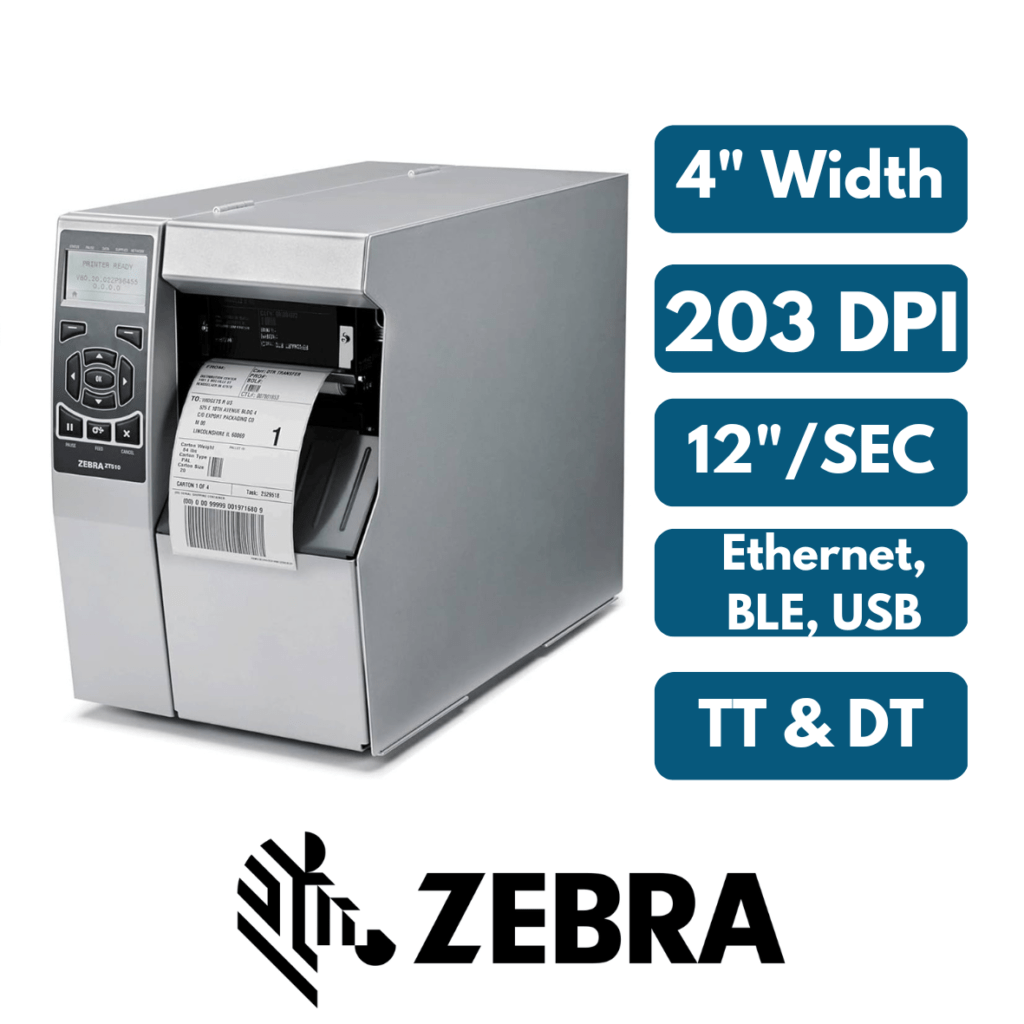
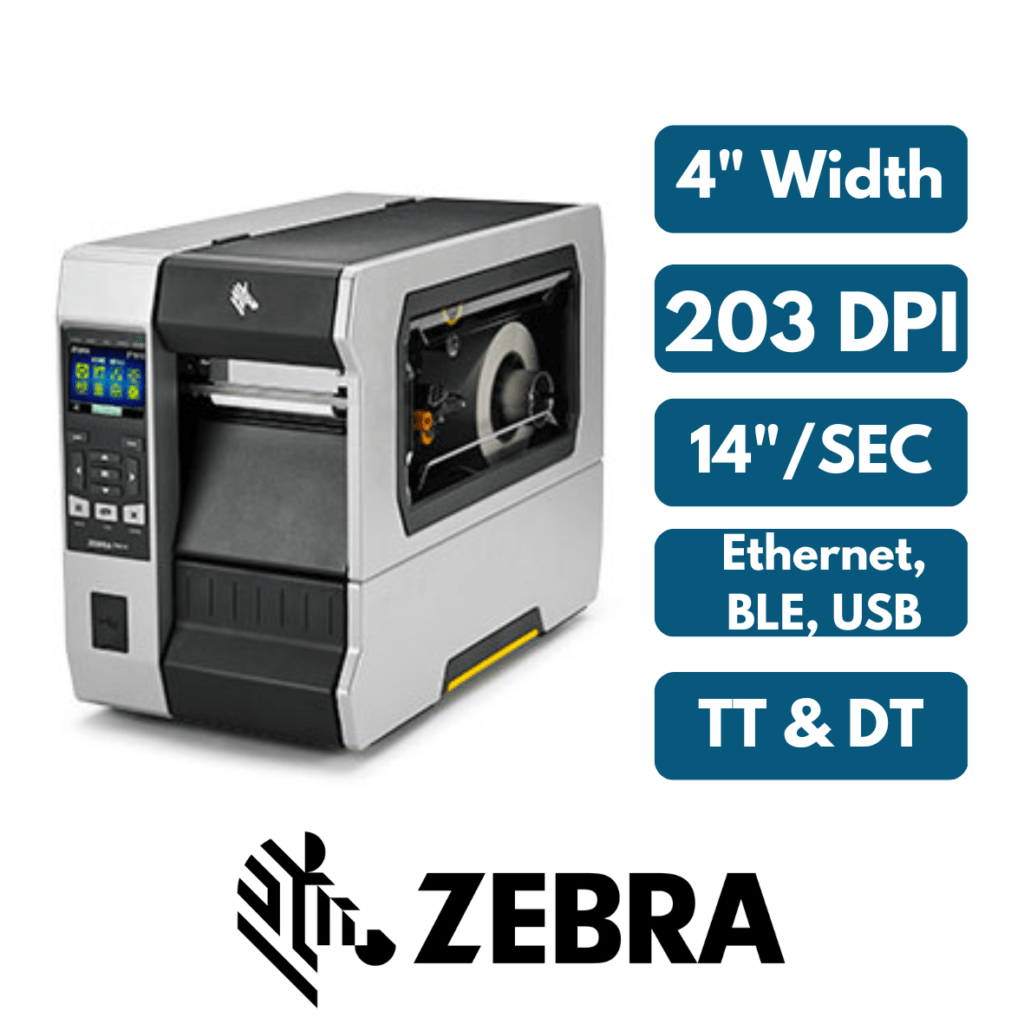
Industrial printers are designed for demanding environments, sustained workloads and applications where print speed, media capacity and durability are important.
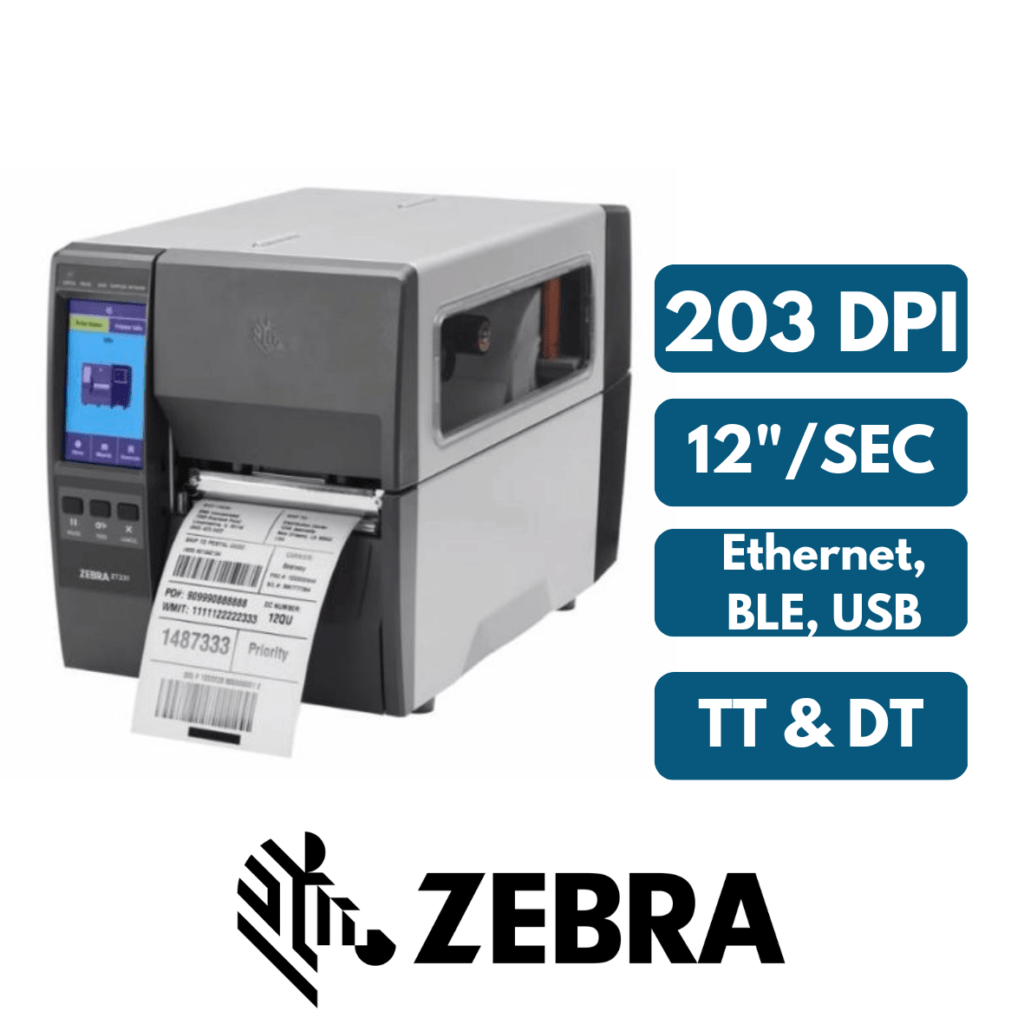
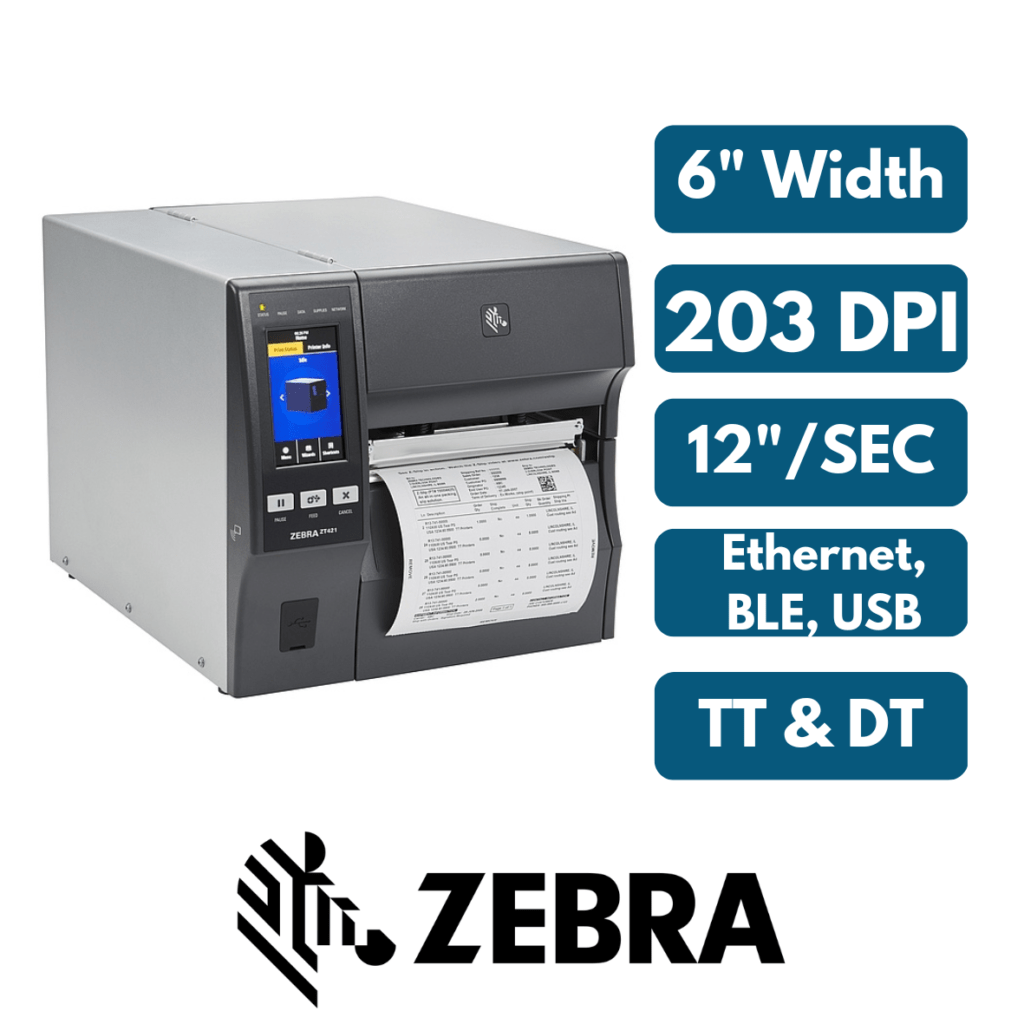
Models to explore: Zebra ZT231, ZT411 and ZT421.
2. Choose the Right Print Resolution
Resolution is measured in dots per inch (DPI). The correct resolution depends on label size, barcode dimensions and how much information must fit on each label.
| Resolution | Common applications | What to consider |
|---|---|---|
| 203 DPI | Shipping, warehouse, inventory and general product labels | A practical option for many standard label applications. |
| 300 DPI | Smaller labels, fine text, detailed graphics and jewellery labels | Useful when greater detail is needed within limited space. |
| 600 DPI | Specialized applications requiring very fine detail | Check model availability and application requirements. |
3. Direct Thermal or Thermal Transfer?
Choose the printing method according to the label material, expected label life and exposure to heat, sunlight, friction or chemicals.
Direct Thermal Printing
Uses heat-sensitive label material and does not require a ribbon. It is commonly used for shipping labels, dispatch labels and other applications where the required print life suits direct thermal media.
- No ribbon required
- Simple consumables setup
- Check resistance to heat, light and fading
Thermal Transfer Printing
Uses a ribbon to transfer print onto compatible label material. It is often chosen for product identification, inventory, asset and other applications needing more durable print performance.
- Requires a compatible ribbon
- Supports a range of label materials
- Ribbon choice affects durability and cost
4. Check Connectivity Before You Buy
Select connectivity that works with your existing computers, network, mobile devices and business software. Options vary by model and configuration.
USB
A straightforward choice for connecting a printer to an individual computer or a supported local setup.
Ethernet / LAN
Useful when multiple authorized users or systems need access to a network-connected printer.
Bluetooth
Useful for supported mobile printing workflows and compatible applications or devices.
Wi-Fi or Legacy Ports
Wireless networking or serial connectivity may be important for particular installations. Check availability and compatibility for the exact model.
5. Consider Your Label Design and Software
Zebra printers can be used to print text, barcodes, QR codes, graphics and variable data. The best software setup depends on how your labels are designed and where the data comes from.
Simple Label Printing
For labels with fixed layouts or manually entered data, a suitable label-design application may be sufficient. Check the included software and licensing for your model.
Excel, Database or ERP Printing
If every label contains different product codes, prices, serial numbers or shipment details, confirm that your software supports data import, database connections or integration with your ERP or warehouse system.
Software features and licensing vary. Verify requirements for Excel integration, automated printing and multi-user workflows before making your purchase.
6. Choose Compatible Labels and Ribbons
Your printer is only one part of the printing solution. Label width, roll dimensions, core size, sensor compatibility and material all matter. Thermal transfer printing also requires a compatible ribbon.
Barcode Labels
Choose paper or synthetic labels based on the application, surface and expected exposure. Confirm the required label size and printer specifications.
Barcode Ribbons
Wax, wax-resin and resin ribbons suit different label materials and durability requirements. Select a ribbon that is compatible with both the printer and label stock.
7. Buy from an Authorized Zebra Partner
When comparing suppliers, look beyond the initial printer price. Product authenticity, correct model selection, consumables compatibility, warranty terms and after-sales support can all affect the total cost of ownership.
Before Ordering
- Confirm the exact model and print resolution.
- Check the included connectivity and accessories.
- Verify warranty coverage and terms.
- Confirm compatible labels and ribbons.
- Ask about support and software requirements.
Get Help Choosing
SoluWise supplies Zebra barcode printing solutions in Dubai, Abu Dhabi and across the UAE. Share your label size, daily volume, printing method and software needs to help identify a suitable configuration.
Not Sure Which Zebra Printer You Need?
Tell us what you print, your label dimensions and your approximate daily volume. Our team can help you compare suitable models and compatible labels and ribbons.
FAQs
Zebra printers can print labels on a variety of materials, including paper, synthetic materials, and plastic. Only labels in roll form can be used with Zebra printers, and the number of labels that can fit on a roll will vary depending on the printer model. Plastic labels need resin ribbons, whereas paper labels need wax ribbons.
Zebra printers support a large variety of label sizes. The majority of Zebra printers have maximum dimensions of 4″ or 10 cm in width and 12 cm or 30 cm in length. Therefore, the Zebra printer can be used with any combination of these sizes. Below are some of the most common sizes used in Zebra printers:
- 38mm x 25mm
- 50mm x 25mm
- 75mm x 50mm
- 100mm x 50mm
- 100mm x 100mm
- 100mm x 150mm
All Zebra printers come with a free label designing software called Zebra Designer. The software helps you design almost any type of label with multiple options for text, barcode, image, shapes, icons etc. It is very easy to use & can be downloaded from Zebra website.
There are several reasons why the printer might not be printing the labels as needed. The most common issue would be that the labels or ribbons are not installed properly. Or it could be that the sensor is not positioned correctly.
Another issue that is commonly seen is that the label dimension are not set correctly in the printer drivers, which would cause calibration issues on the printer.
All Zebra printers have darkness settings that can be accessed from the printer driver. The darkness ranges from 1-30 (30 being the highest). You can set the darkness as per your satisfaction with print quality.
You can clean the exterior of the printer with a damp cloth. It is not recommended to clean with water on the interior part of the printer.
You should also regularly clean the printhead to prolong the life of the printer. You can watch this video on How to Clean the Printhead.
Can't Find What You Need?
Contact us below, & one of our experts will get in touch with you shortly
Contact Us