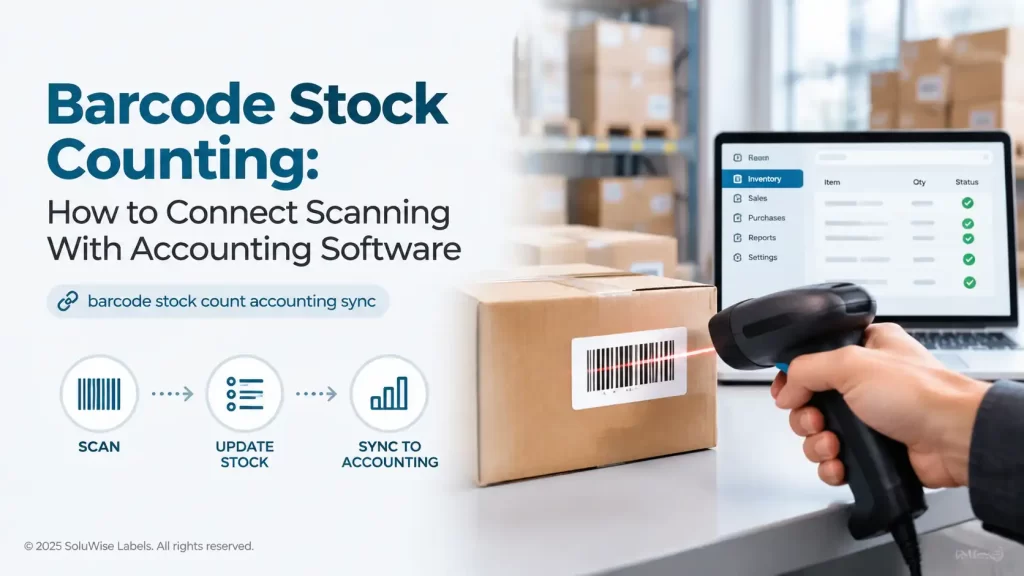
A physical stocktake becomes far more useful when the count can be traced back to the item, location and accounting record. Barcode Stock Counting: How to Connect Scanning With Accounting Software explains the practical connection: identify each stock item consistently, scan it during the count, review exceptions, then import or post approved quantities to the accounting system.
The scanner does not automatically fix inaccurate item masters or duplicate product codes. It does, however, reduce manual keying and gives the warehouse team a repeatable barcode inventory counting process. For UAE businesses handling cartons, retail stock, spare parts or hospitality supplies, that can make stocktakes easier to audit and less disruptive to daily work.
The recommended approach is to treat the stocktake as a controlled workflow rather than simply scanning everything in sight. Start with clean product records and usable labels, count by location, review discrepancies, and only then update accounting quantities.
How barcode stock counting connects to accounting software
Most accounting and inventory systems store an item code, description, unit of measure, quantity on hand and, in many cases, a warehouse or bin location. Barcode scanning provides a faster way to identify the same item code while stock is being counted.
In a basic setup, a stock scanner reads a barcode and passes the barcode value to a stocktaking app, spreadsheet or inventory module. The system looks up the matching item record and records a quantity against it. After a supervisor reviews the count, the approved figure is imported into or posted to the accounting records.
The connection can be direct or indirect. A business may use an inventory application that integrates with its accounting platform, or it may export a count file for review before import. The right route depends on the accounting software, available integrations and how much control the finance team requires over stock adjustments.
| Stage | What happens | Control to keep |
|---|---|---|
| Item preparation | Each saleable item, carton or asset receives a unique barcode value linked to its item record. | One barcode should identify one intended stock unit. |
| Count setup | Locations, count teams and count dates are defined before scanning begins. | Pause or clearly identify stock movements during the count. |
| Scanning | Staff scan the item barcode and enter or confirm the quantity found. | Record the location and counter where possible. |
| Reconciliation | Counted quantities are compared with book quantities. | Investigate large or unusual variances before posting. |
| Accounting update | Approved adjustments update inventory values and quantities according to the business process. | Restrict posting rights and retain the count record. |
Prepare barcoded stock lists before the stocktake
The most common source of failed scanning projects is not the scanner. It is a mismatch between what is printed on the label and what exists in the item master. Before the count, export or review the stock list and check that each active SKU has one agreed barcode value.
Decide what the barcode identifies
A barcode can identify an individual product, an inner pack, a carton, a shelf location or a pallet. These are different uses and should not share a barcode unless the system is designed for it. For example, a carton of 24 bottles should not use the same code as one bottle if staff need to count both units separately.
Where stock is received in cartons but sold as individual units, define the conversion rule before the count. The scanned carton code may need to add 24 units, while the individual item code adds one. That rule belongs in the inventory software or count procedure, not in a handwritten assumption made by the counting team.
Check item data and units of measure
- Remove or flag discontinued items that should not be counted.
- Check for duplicate barcode values assigned to different products.
- Confirm that barcode values do not lose leading zeroes during spreadsheet exports.
- Use consistent names for warehouses, stockrooms and bins.
- Confirm whether quantities are counted as eaches, boxes, metres, kilograms or another unit.
- Keep a process for unlabelled, damaged or unknown stock rather than creating records during the count.
Printing a barcode creates a scannable symbol; it does not register a product with GS1 or create a GS1-issued identifier. A business should use the identifier that matches its product and data-management process, then print that value accurately and consistently.
Choose labels that survive handling and scanning
Labels need to remain readable from receiving through to the next stocktake. A warehouse carton label may face abrasion, dust and handling, while a shelf label may need a smaller format and clear human-readable text. In hot or humid UAE storage areas, adhesive choice and the surface being labelled should be considered before committing to a large print run.
SoluWise custom-size labels suit businesses that need a label format matched to an existing carton, shelf edge, bin, product pack or asset. Custom sizing can leave enough quiet space around the barcode, add an item description or location code, and avoid wrapping the barcode around a curved surface. They are particularly useful where a standard label size would cover important packaging information or create an awkward scan angle.
The limitation is that label size alone does not solve a poor barcode design. Very small symbols, low-contrast printing, damaged surfaces and a barcode placed across a fold can still cause missed scans. Before printing a large batch, test representative labels on the actual packaging and scan them at the working distance used by the team.
Build a scanning workflow the warehouse can follow
A reliable stocktake is usually location-led. Count one zone at a time, such as aisle, rack, room or shop section, so stock is less likely to be counted twice or missed. If the business continues trading during the count, record all movement after the count starts and deal with it through a documented cut-off process.
- Freeze the count scope. Define the locations, stock types and date included in the stocktake.
- Load the count file. Provide the scanner application or counting sheet with valid item codes and locations.
- Scan the location first if supported. This ties each count to where the stock was physically found.
- Scan the item barcode. Confirm the description shown on screen before entering the quantity.
- Handle exceptions separately. Put unreadable, unlabelled or unexpected stock into an exception list for review.
- Perform second counts on variances. Recount selected differences before financial adjustments are approved.
For a retailer, this might mean counting each shelf section after closing and recording unopened back-room cartons separately. For a spare-parts store, it may mean scanning bin labels first, then scanning each part number. The principle is the same: the physical count should be traceable to a person, time and location.
Using Zebra scanners for stocktakes
Zebra scanners are suitable for teams that need a dedicated handheld device for repeated barcode scanning during receiving, picking or stocktakes. They can be a sensible option where staff are currently using phone cameras or manually entering item codes, particularly if the operation needs a more consistent scanning routine.
The scanner must still be compatible with the chosen software workflow. Before purchase, confirm how the accounting or inventory application accepts scanned data: keyboard input, mobile application, wireless connection, file upload or a supported integration. A scanner is unsuitable if the software cannot receive its scanned data in a usable format, or if staff need functions beyond simple barcode capture that the selected application does not provide.
Sync approved counts back to accounting records
The accounting update should happen after review, not immediately after every scan. A scanned quantity is an observation from the warehouse floor; an inventory adjustment may affect stock valuation, cost of goods and financial reporting. Many businesses therefore separate counting authority from adjustment approval.
Start by comparing the scanned count against the book quantity. Investigate meaningful differences by checking the physical location, unit of measure, recent receipts, sales orders, returns and transfers. A variance may be a genuine shortage, but it may also be an item stored in the wrong bin, a carton counted as an individual unit, or a barcode mapped to the wrong SKU.
Once exceptions are resolved, the approved count can be exported or posted through the supported accounting integration. Retain the original count file, variance report and approval record. This gives the operations and finance teams a clear history if a discrepancy needs to be revisited later.
Common problems and practical fixes
| Problem | Likely cause | Practical response |
|---|---|---|
| Scanner reads the wrong item | Duplicate or incorrect barcode mapping. | Check the item master and relabel affected products. |
| Barcode will not scan | Poor print contrast, damage, unsuitable size or curved placement. | Test a replacement label and review print quality and placement. |
| Large quantity variance | Stock movement, incorrect unit conversion or missed location. | Recount the area and review transactions after the count cut-off. |
| Count cannot import | File columns, barcode formatting or item codes do not match the accounting system. | Use a small test import and validate field mapping before the full update. |
| Staff scan items twice | No location sequence or unclear completion marking. | Divide zones clearly and require a completed-count marker for each zone. |
FAQ
Can barcode scanning update accounting software automatically?
It can, but only if the inventory or counting application has a supported method of passing approved data into the accounting system. Many businesses prefer a review and approval step before stock adjustments are posted.
Do all products need a barcode for stocktaking?
Items counted regularly should ideally have a scannable identifier. For unusual, damaged or unlabelled stock, use an exception process and assign or confirm the correct item record before it is added to the final count.
Can the same barcode be used for a carton and an individual item?
Not if the business needs to distinguish between the two units. Use separate identifiers or a defined conversion rule so the system knows whether one scan represents one item or a full carton.
What information should appear on a stock label?
A useful label often includes the barcode, a readable item code or description, and sometimes a location or batch reference. The exact layout depends on the available label area and what staff need to verify during receiving and counting.
Are custom-size labels necessary for barcode inventory counting?
Not always. Standard sizes can work well on flat cartons and shelves. Custom-size labels are helpful where packaging dimensions, existing printed information, scan distance or label placement make a standard format impractical.
A practical decision rule for barcode stocktakes
Use barcode scanning when the business can maintain a clear relationship between the barcode, the stock unit and the accounting item record. Begin with a small area or selected product group, test the count export and reconciliation process, then expand after the team is comfortable with the controls.
For guidance on label size, barcode layout, printer compatibility or the expected number of scans during a stocktake, contact SoluWise with the item type, packaging surface and current accounting workflow. The right label and scanner setup should make counting clearer, not add complexity.